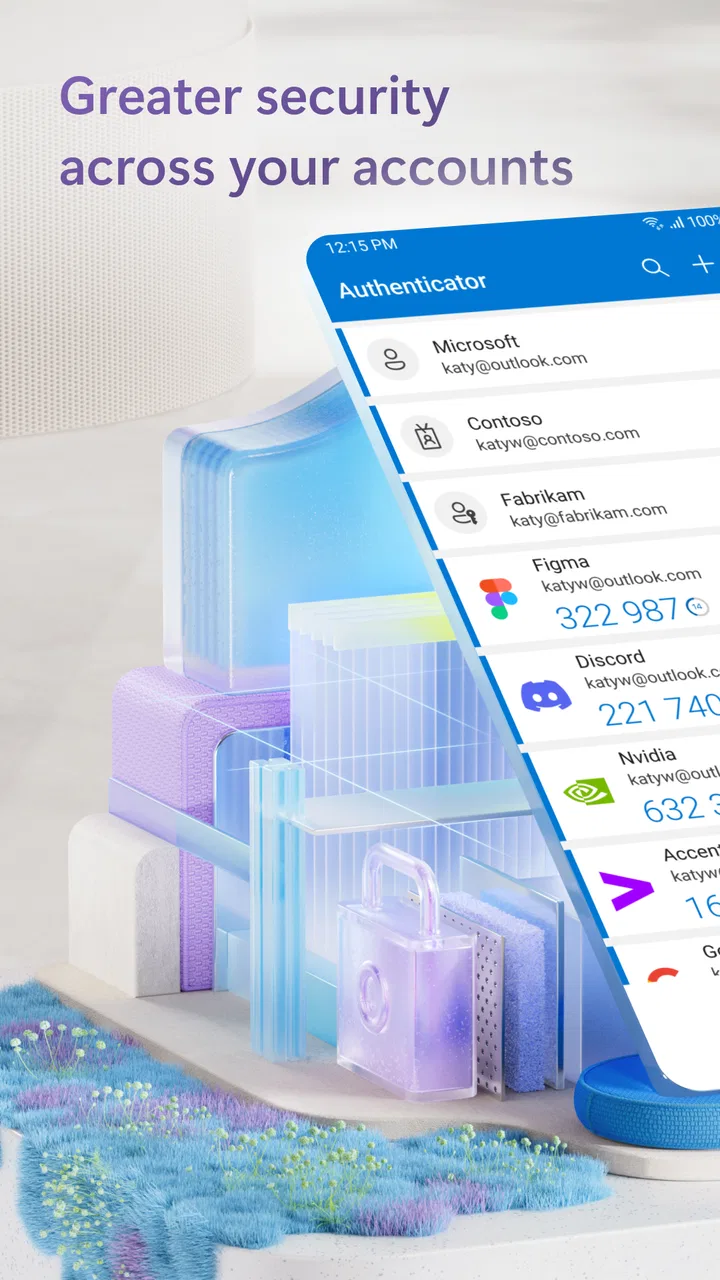
Microsoft Authenticator
- 4.6
- Rating
- 100.00M
- Installs
- Free
- Price

 Analysis by App-foxy
When a household starts using more online services, account security quickly becomes a shared practical problem. One person may manage work access, another may handle school or personal accounts, and a child may need help signing in without being given access to an adult’s messages or files. I found Microsoft Authenticator useful in that kind of environment because it keeps the approval step tied to the correct account instead of turning one phone into a general-purpose key for everyone.
Microsoft Authenticator is a free business app from Microsoft Corporation for Android and iOS. Its main job is to help you sign in without relying only on passwords, usually by confirming an attempt on a trusted phone or entering a temporary verification code. That sounds simple, but the important part is how carefully you separate accounts during setup. The app can support several identities on one device, yet that convenience should not be confused with shared ownership.
I would recommend it to people who regularly use Microsoft services, workplace systems, school portals, or other accounts that support authenticator-based verification. I would be more cautious about recommending it as a casual family utility. It is not a family-management app, and it does not replace clear boundaries between adults, children, guests, and work accounts. Used with that distinction in mind, it can make everyday sign-ins much less dependent on remembering passwords.
In-Depth Coverage of Microsoft Authenticator
Using one phone around a shared household
A realistic example is a couple sharing responsibility for household administration. One person may have a work account, while the other manages insurance, banking, school communication, or a small business. If both people place their accounts in one Authenticator installation, the app can become confusing unless each entry is labeled and recognized before approval. A notification that says only “approve sign-in” deserves a pause, especially when several accounts are present.
My preferred arrangement is for each adult to keep their own phone and approve their own sign-ins. That preserves a useful boundary: the person who owns the account remains the person who decides whether access is legitimate. If a phone must be shared temporarily, I would treat it as a short-term compromise rather than a permanent household design. The app can hold multiple account entries, but it cannot determine which family member should be allowed to approve a request.
This matters because an approval prompt is not just a convenience button. It can grant access to an account that contains work documents, private conversations, saved files, or personal information. A child helping a parent with a sign-in may understand the screen but still not understand the importance of rejecting an unexpected request. In a shared-device situation, the adults need to explain that “approve” means “I recognize this attempt,” not “the phone made a harmless notification.”
The strongest household use is therefore coordination, not pooling. For example, one adult can help another enroll a new phone, check that the correct account appears, and complete a test sign-in while the account owner watches. Afterward, the owner should know which account is protected, which device receives approvals, and what to do if a request appears at an odd time. That small handover is more valuable than simply installing the app on every available phone.
What setup gets right, and where the boundaries matter
Initial setup is usually straightforward when the service you are protecting provides a QR code, enrollment flow, or another method for connecting an account to an authenticator. I found the most important step was slowing down before scanning anything. Read the account name, confirm that the enrollment belongs to the intended service, and avoid adding a work identity to a phone that other people routinely unlock.
Once an account is added, do not assume every entry has the same purpose. Some services use push approvals, while others rely on rotating codes. The experience can therefore differ from one account to another even though both appear inside the same app. I recommend performing a sign-in test immediately after setup, while you still have access to the old method or recovery route. Discovering a configuration problem during a calm test is far better than finding it when traveling or facing an urgent deadline.
A useful habit is to give each account a recognizable label and remove entries that are no longer needed. This is especially important on a device used by more than one adult. An old employer account, a former school account, or a duplicate entry can make a legitimate prompt harder to identify. Keeping the list tidy is not cosmetic; it reduces the chance of approving the wrong request.
There is also a trade-off between convenience and independence. A household may be tempted to put one person’s account on another person’s phone as a backup. That can help when a device is lost, but it also creates another place where account access may be exposed. Before doing this, decide whether the second phone is genuinely controlled by the account owner and whether the arrangement will still make sense after a job change, a move, or a change in the relationship between users.
For work accounts, I would follow the organization’s instructions rather than improvising a family backup. A company may require a particular registration process or may expect the employee to keep authentication under personal control. Microsoft Authenticator can be part of that workflow, but the app itself cannot resolve workplace rules. The safest setup is the one that fits both the service’s enrollment process and the account owner’s real ability to respond to sign-in requests.
Coordinating approvals without turning security into guesswork
The app is most comfortable when the person signing in and the person holding the phone are the same person. In a household, that is not always possible. A parent might be helping a teenager access a school-related service, or a partner might be assisting someone who is not confident with technology. In those cases, I would make the approval a spoken, deliberate exchange: identify the service, state who initiated the sign-in, and only then confirm it.
You May Also Like

 Hill Climb Racing
Why Hill Climb Racing Still Turns Crashes Into One More Run
A tiny car, a bumpy hill and one more upgrade: Hill Climb Racing keeps resurfacing because its simple chaos makes every near-miss feel personal.

 AliExpress - Shopping App
AliExpress Makes Global Shopping Feel Personal, but Shoppers Bear the Risk
AliExpress turns a global marketplace into a pocket-sized discovery engine. Its reach is useful, its shopping loop compelling, and its trade-offs easy to miss.

 Lords Mobile: Kingdom Wars
Lords Mobile Is a Kingdom-Building Routine, Not a Quick Match
A case-by-case verdict on the building, battles, device demands, and social commitments that make Lords Mobile rewarding for some players and exhausting for others.

 PDF Scanner app - TapScanner
TapScanner Makes Paperwork Easier to Capture, Check, and Share
TapScanner makes scanning with a phone feel less like a rescue operation and more like a dependable step in getting work done. Its capture tools are useful, though not flawless.

 Block Blast!
Block Blast! Shows How Much a Puzzle Game Can Leave Out
A quiet grid game shows why puzzle players increasingly value instant clarity, repeatable skill and low-pressure play—and where the genre still needs to catch up.

 Family Space
Family Space Review: A Shared Routine That Makes Family Life Easier
A parenting app earns its place not by adding more noise, but by making everyday coordination easier. Family Space gets that balance mostly right.
More From Our News Desk
View All News


That process may feel slower than tapping immediately, but it teaches a useful security rule. If nobody initiated a sign-in, reject it or leave it unanswered and investigate through the service’s normal security settings. Do not approve a request simply because it appears on a familiar phone. The device tells you where the prompt arrived; it does not prove who caused it.
Temporary codes are helpful when a push notification is delayed, unavailable, or difficult to coordinate. I like having that alternative because it gives the account owner another way to complete a legitimate sign-in. However, a code should be entered only into the service that requested it. It should never be read aloud to an unsolicited caller, typed into a message link, or shared just because someone claims to be helping with an account.
This is one area where Microsoft Authenticator differs from relying on password resets or text messages alone. Password recovery can be slow and stressful, while text messages depend on mobile service and expose the code through a separate channel. An authenticator app keeps the verification step close to the device, which is convenient, but it also makes the device itself important. If the phone is unavailable, the account owner needs a recovery plan rather than hope that the next notification will somehow arrive.
I would write down the names of the protected services and the general recovery route in a secure place, without recording active verification codes. For a household, this can be a private emergency note that explains who owns each account and where official recovery options are found. The purpose is coordination during a lost-phone incident, not giving every household member unrestricted access.
Children, older relatives, and the question of trust
The content rating is Everyone, and the app is suitable for a broad range of users in that sense. That does not mean every user should manage every account. Age is only one part of the decision. A young person may be perfectly capable of entering a code but still need an adult to explain why an unexpected approval is dangerous. An older relative may understand the security principle but need help distinguishing a legitimate sign-in from a confusing notification.
For children, I would keep the account boundary clear. If the account belongs to the child, the child and supervising adult can agree on how approvals are handled. If the account belongs to the parent, placing it on the child’s phone simply because the child is more comfortable with technology may create unnecessary exposure. Authenticator is not a substitute for parental supervision, device profiles, or separate user accounts.
Older family members may appreciate the reduction in password memorization, particularly when a service supports a simple approval flow. Still, the first few sign-ins should be practiced together. Show the person how to recognize the account name, how to refuse an unexpected request, and where the code belongs if a code-based method appears. I would rather spend time building that habit than tell someone to approve every prompt to avoid confusion.
Trust also changes over time. A shared phone arrangement that seems reasonable during a short trip may be inappropriate after a separation, a new job, or a change in who manages household technology. Review which accounts are present whenever the device changes hands. Removing an account entry from the app is not the same as closing the online account, so the account owner should also review the service’s registered devices and recovery methods when necessary.
Privacy is another reason to avoid casual sharing. Even if the app does not display the contents of an account, its entries reveal which services a person uses. A work identity, school identity, or personal service may be sensitive information. Keeping the app on a personal device limits that exposure and makes approval decisions more accountable.
How it compares with familiar alternatives
The usual alternative is to keep using passwords and request a reset whenever one is forgotten. That approach can work for low-risk services, but it becomes tiring when several accounts require different rules. Microsoft Authenticator is more useful when a service supports passwordless sign-in or two-step verification and you want a repeatable approval process instead of another password to remember.
Text-message verification is often easier for a first-time user because the code arrives in a familiar messaging channel. I see it as a practical fallback, not always the best long-term choice. It depends on access to the phone number and the mobile network, while an authenticator app can generate codes or handle approvals directly on the enrolled device. The trade-off is that the app requires more deliberate setup and a plan for device loss.
Password-manager apps solve a different problem. They are better when the main need is storing and creating strong passwords across many websites. Authenticator is better at confirming that a sign-in attempt is authorized. Some people will benefit from using both: a password manager for credentials and Microsoft Authenticator for an additional verification step. Choosing one does not automatically eliminate the other’s role.
Hardware security keys can be a stronger fit for people who want a physical sign-in device and are comfortable carrying it. They may be preferable for high-risk accounts or users who do not want approvals tied to a phone. On the other hand, a phone-based app is easier to adopt for many households because the device is already present. I would choose based on the account’s risk, the user’s habits, and the quality of the recovery plan rather than convenience alone.
Practical limits before you make it the household standard
The app does not remove every point of friction. Notifications can be missed, accounts can be added to the wrong device, and a crowded list can make approval prompts harder to interpret. A person who changes phones without preparing the account may face a difficult recovery process. These are not reasons to avoid it, but they are reasons to treat enrollment as a security task rather than a quick download.
It is also not the right choice for someone who wants one shared login for an entire family. Shared credentials make responsibility unclear, and putting the same identity on several personal phones can make it difficult to know who approved a sign-in. Where a service offers separate household profiles or delegated access, those options are usually cleaner. Authenticator works best when each person has a distinct account and understands their own approval responsibility.
The app has been available since January 2015 and its current version is 6.2512.8111, with Android support from version 8.0 onward. It has reached over one hundred million installs, with an average rating of 4.6 from around two million ratings and roughly one hundred thousand reviews. Those figures suggest broad adoption, but they do not guarantee that every service or workplace has configured authentication in the same way. Always judge the actual enrollment screen and sign-in experience for the account you need to protect.
Because it is free and rated Everyone, the barrier to trying it is low. The real cost is attention: you need to label accounts, protect the phone, test recovery, and teach other household users not to approve unexplained prompts. If you are unwilling to maintain those habits, a simpler method may feel easier, even if it offers less protection.
My household verdict
After using Microsoft Authenticator, I see it as a strong personal security companion that can work in a household only when account ownership stays clear. I would install it for my own work and personal sign-ins, help a family member set up their separate account, and keep the approval decision with the person who owns that account. I would not treat one installation as a communal key ring.
Its best qualities are practical: fewer passwords to type, a familiar approval workflow, and code-based verification when a prompt is not the right option. Its weaknesses are equally practical: setup mistakes, device dependence, confusing multi-account lists, and the risk that a user approves a request without checking it. Those limitations are manageable when the family agrees on simple rules before a problem occurs.
For a household, my recommendation is to start with one low-pressure account, complete a test sign-in, label the entry, and discuss what an unexpected request means. Then decide who owns the phone, who can help, and how recovery will work if that phone disappears. If those answers are clear, Microsoft Authenticator is a sensible free choice for reducing password dependence. If the goal is shared access without personal boundaries, I would choose a service designed for delegated household use instead.
The key lesson is simple: use the app to confirm the right person’s sign-in, not to blur who controls the account. With that boundary in place, it becomes a useful part of everyday digital housekeeping rather than another source of household confusion.
FAQs for Microsoft Authenticator
01What is Microsoft Authenticator and what does it do?
Microsoft Authenticator is a security app that enhances your online protection by providing two-factor authentication. It generates time-based, one-time passcodes for your accounts, ensuring that even if your password is compromised, your accounts remain secure. It also supports passwordless sign-ins for Microsoft accounts, making it convenient and safe.
02Is Microsoft Authenticator free to use, and are there any hidden costs?
Yes, Microsoft Authenticator is completely free to download and use on both Android and iOS devices. There are no hidden costs or in-app purchases required to access its core features. It provides a robust layer of security without requiring a subscription or additional fees.
03How does Microsoft Authenticator work with other apps and services?
Microsoft Authenticator is compatible with a wide range of services beyond Microsoft accounts. It supports third-party apps and services that offer two-factor authentication. You can easily add accounts by scanning a QR code, ensuring seamless integration with platforms like Google, Facebook, and more.
04Can Microsoft Authenticator be used without a Microsoft account?
Yes, you can use Microsoft Authenticator without a Microsoft account. It supports a variety of third-party services, allowing you to add and manage accounts from different providers. However, for features like passwordless login, a Microsoft account is necessary.
05What should I do if I lose my phone with Microsoft Authenticator installed?
If you lose your phone, it’s essential to have backup options in place, such as recovery codes. You should also contact the support teams for the accounts protected by the app to secure them. Additionally, setting up the app on a secondary device can provide quick access if your primary device is lost.
Pros
- Seamless integration with Microsoft accounts.
- Easy setup with QR code scanning.
- Supports two-factor authentication.
- No internet needed for code generation.
- Biometric security for app access.
Cons
- Limited support for non-Microsoft accounts.
- No password management features.
- No desktop app available.
- Requires frequent app updates.
- Notifications can be delayed.

Microsoft Authenticator
Gallery